
Cloud & Sky Photoshop Brushes
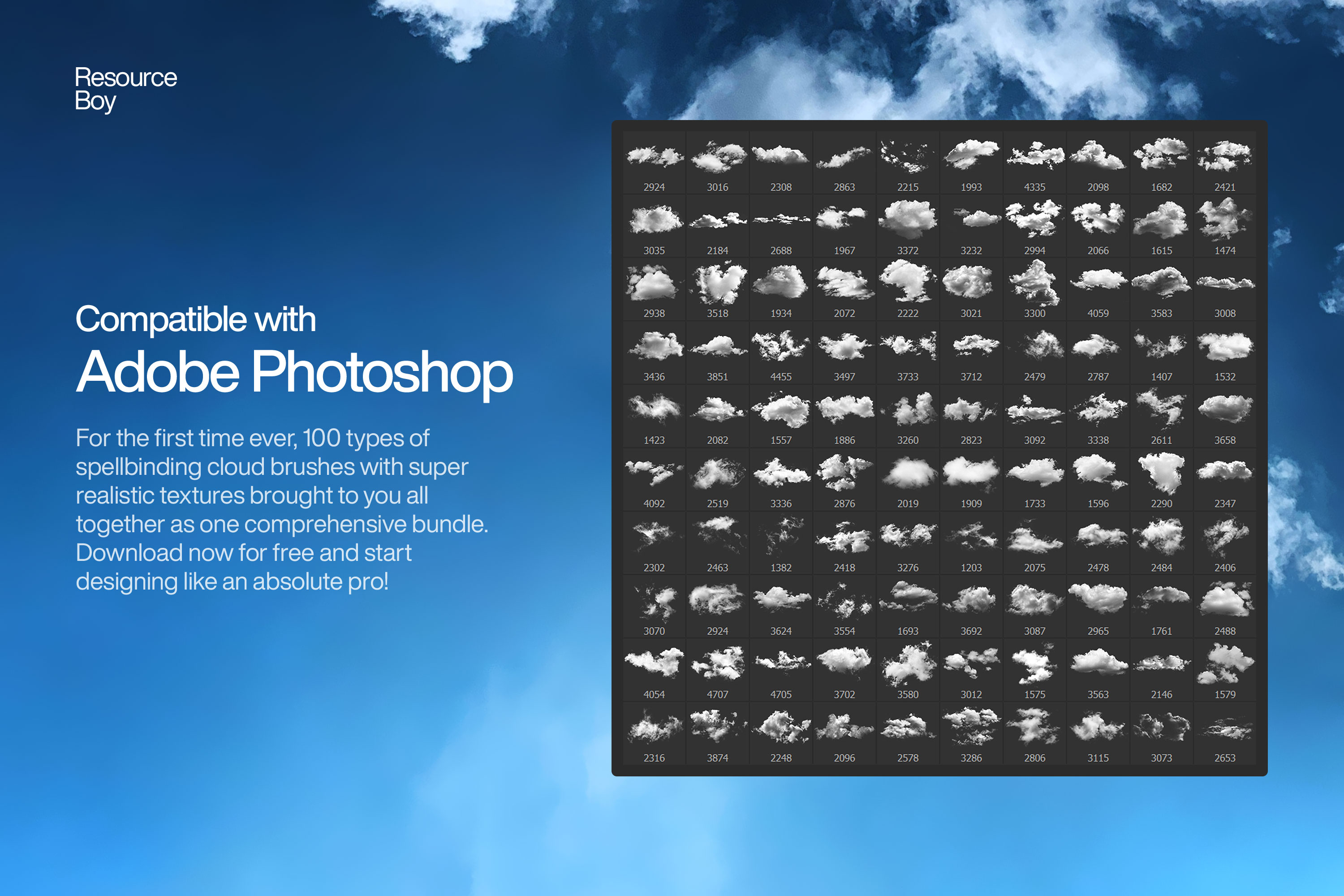
Realistic cloud and sky Photoshop brushes. Fluffy clouds, storm clouds, and dramatic sky effects for photo compositing.
Cloud and sky brushes allow you to add dramatic, realistic skies to any photograph or digital artwork in seconds. These brushes range from soft, fluffy cumulus clouds and wispy cirrus streaks to dark, roiling storm formations and eerie fog banks that roll across the horizon. Sky replacement is one of the most commonly requested edits in photo retouching, and cloud brushes give you complete creative control over the atmosphere you build — without relying on real sky photographs. For digital painters and concept artists, cloud brushes are foundational tools for setting mood, time of day, and weather in a scene.

About Cloud & Sky Photoshop Brushes
Cloud and sky brushes allow you to add dramatic, realistic skies to any photograph or digital artwork in seconds. These brushes range from soft, fluffy cumulus clouds and wispy cirrus streaks to dark, roiling storm formations and eerie fog banks that roll across the horizon. Sky replacement is one of the most commonly requested edits in photo retouching, and cloud brushes give you complete creative control over the atmosphere you build — without relying on real sky photographs. For digital painters and concept artists, cloud brushes are foundational tools for setting mood, time of day, and weather in a scene.
Tips for Using Cloud & Sky Photoshop Brushes
- Paint clouds in white or very light grey on a blue sky layer, starting at 20–40% opacity and building up the form gradually
- Shape the cloud form by working from the edges inward — lighter at the top, slightly darker and flatter at the base for cumulus
- Add depth by making distant clouds smaller, slightly grayer, and lower in the composition
- For dramatic storm clouds, darken the undersides with a dark blue-grey layer in Multiply mode
- Blur the cloud layer slightly (Gaussian Blur 1–3px) to integrate it naturally with the rest of the sky
Frequently Asked Questions
How do I add realistic clouds to a photo using Photoshop brushes?
Create a new layer above your photo. Paint cloud brushes in white at 20–40% opacity on a separate layer above a solid blue sky layer. Build up the cloud forms gradually with multiple strokes and apply a slight Gaussian Blur (1–2px) to make them feel integrated rather than pasted on.
Can I replace a sky using cloud Photoshop brushes?
Yes — select the sky area using the Quick Selection or Color Range tool, mask it, and paint your replacement clouds on a new layer below the main subject. Cloud brushes give you full creative control over the sky mood, weather, and lighting direction.
What brush settings make painted clouds look more realistic?
Set brush opacity to 20–35% and flow to 40–60%. Enable Shape Dynamics with a small Size Jitter. Build clouds with multiple overlapping strokes, keeping the tops brighter and the bases slightly darker and flatter for realistic cumulus forms.
Are there storm cloud brushes available on this page?
Yes — several cloud brush sets include dramatic storm and overcast sky formations alongside standard fluffy cumulus clouds. These are ideal for cinematic photo compositing, fantasy art, and action scene backgrounds.