
Light Effect Photoshop Brushes
Lens flare, bokeh, glitter, and light streak Photoshop brushes. Magical light effect brushes for photo enhancement.
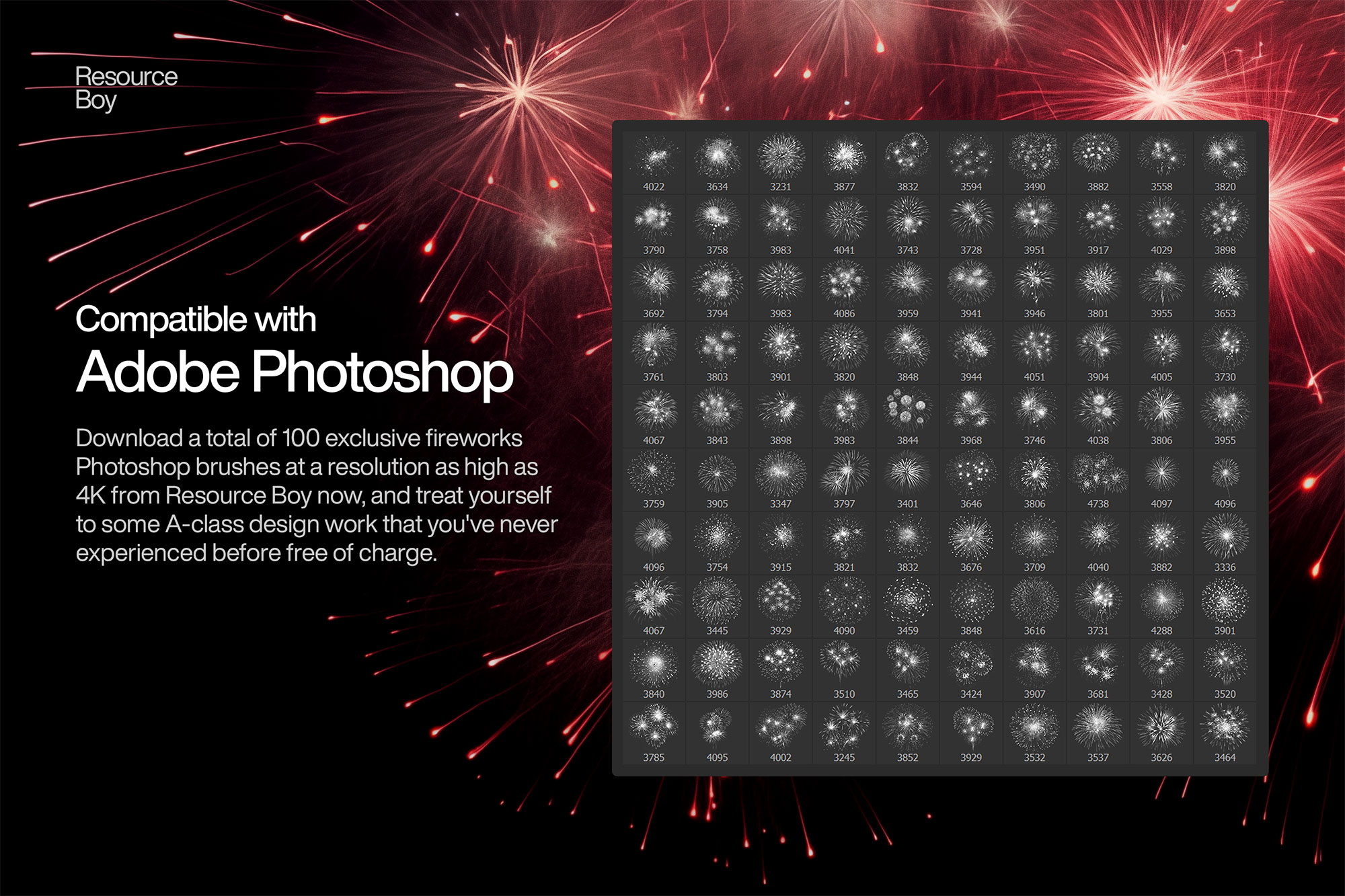
Light effect brushes — including lens flares, bokeh circles, glitter particles, starburst flares, and light streak trails — add magical luminosity and cinematic shine to Photoshop compositions. These brushes are popular in product photography retouching, fashion and beauty editorial work, fantasy digital painting, holiday and event graphics, and social media content that needs to sparkle and catch the eye. Light brushes are one of the few categories where the blend mode is not optional — they must be used in a brightening mode to function correctly, because real light always adds brightness rather than subtracting it.

About Light Effect Photoshop Brushes
Light effect brushes — including lens flares, bokeh circles, glitter particles, starburst flares, and light streak trails — add magical luminosity and cinematic shine to Photoshop compositions. These brushes are popular in product photography retouching, fashion and beauty editorial work, fantasy digital painting, holiday and event graphics, and social media content that needs to sparkle and catch the eye. Light brushes are one of the few categories where the blend mode is not optional — they must be used in a brightening mode to function correctly, because real light always adds brightness rather than subtracting it.
Tips for Using Light Effect Photoshop Brushes
- Always use Screen or Add (Linear Dodge) blend mode — light can never be painted in Normal or Multiply mode and look realistic
- Colorize light effects using a Gradient Map or Color Balance adjustment layer clipped directly to the light brush layer
- Use bokeh brushes in the background at low opacity (15–30%) to simulate shallow depth-of-field in otherwise flat images
- Position lens flare center elements at an actual bright light source in the image — a sun, window, or lamp — for realism
- Layer multiple light brushes at different sizes: large, soft background glows; medium bokeh circles; small sharp sparkle points
Frequently Asked Questions
What blend mode should I use for light effect brushes in Photoshop?
Always use Screen or Linear Dodge (Add) blend mode for light effect brushes. These modes make light additive — they brighten the layers below exactly as real light would, without darkening or covering any content. Using Normal mode makes light look flat and pasted.
How do I add a lens flare using Photoshop brushes?
Create a new layer set to Screen blend mode. Position the center of the lens flare brush over an actual bright light source in your image — a sun, lamp, or window. Paint at 60–80% opacity and add secondary flare elements (streaks, circles) at lower opacity on separate layers for realism.
Can I use bokeh brushes to blur backgrounds in Photoshop?
Bokeh brushes simulate the out-of-focus light circles of shallow depth-of-field. Place them on a layer above a blurred background at 15–30% opacity in Screen mode to add realistic camera bokeh. Size the bokeh circles relative to the distance from the camera focus point.
How do I add sparkle and glitter effects using Photoshop brushes?
Paint glitter and sparkle brushes on a Screen-mode layer above your subject. Use bright white or a light gold color, and vary size between strokes. Add multiple passes at different opacities and sizes — small dense sparkles plus a few large, bright star bursts — for a realistic glitter effect.