
Smoke Photoshop Brushes
Free smoke Photoshop brushes. Realistic smoke, fog, and mist effects for photo manipulation and digital art compositions.
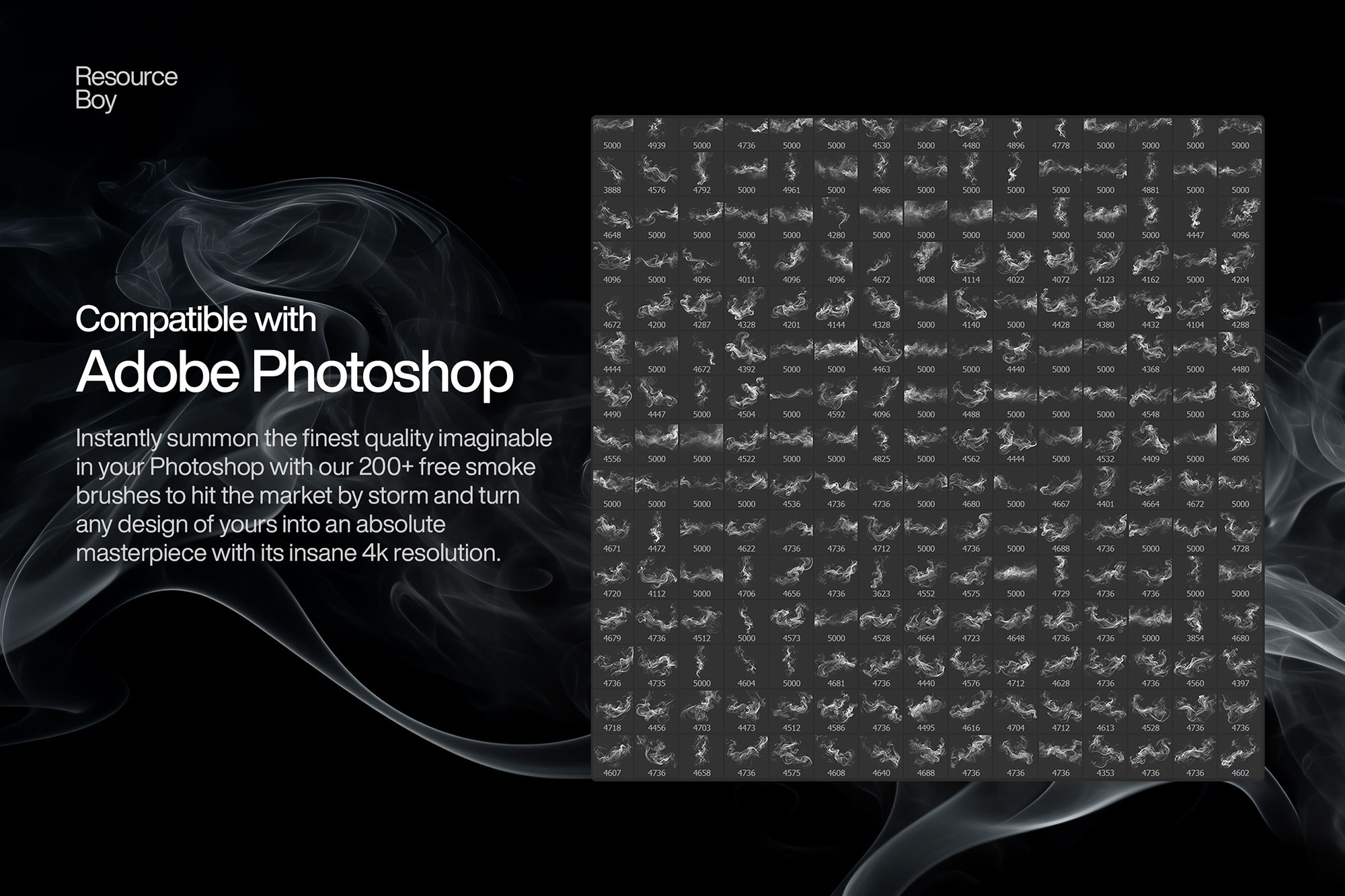
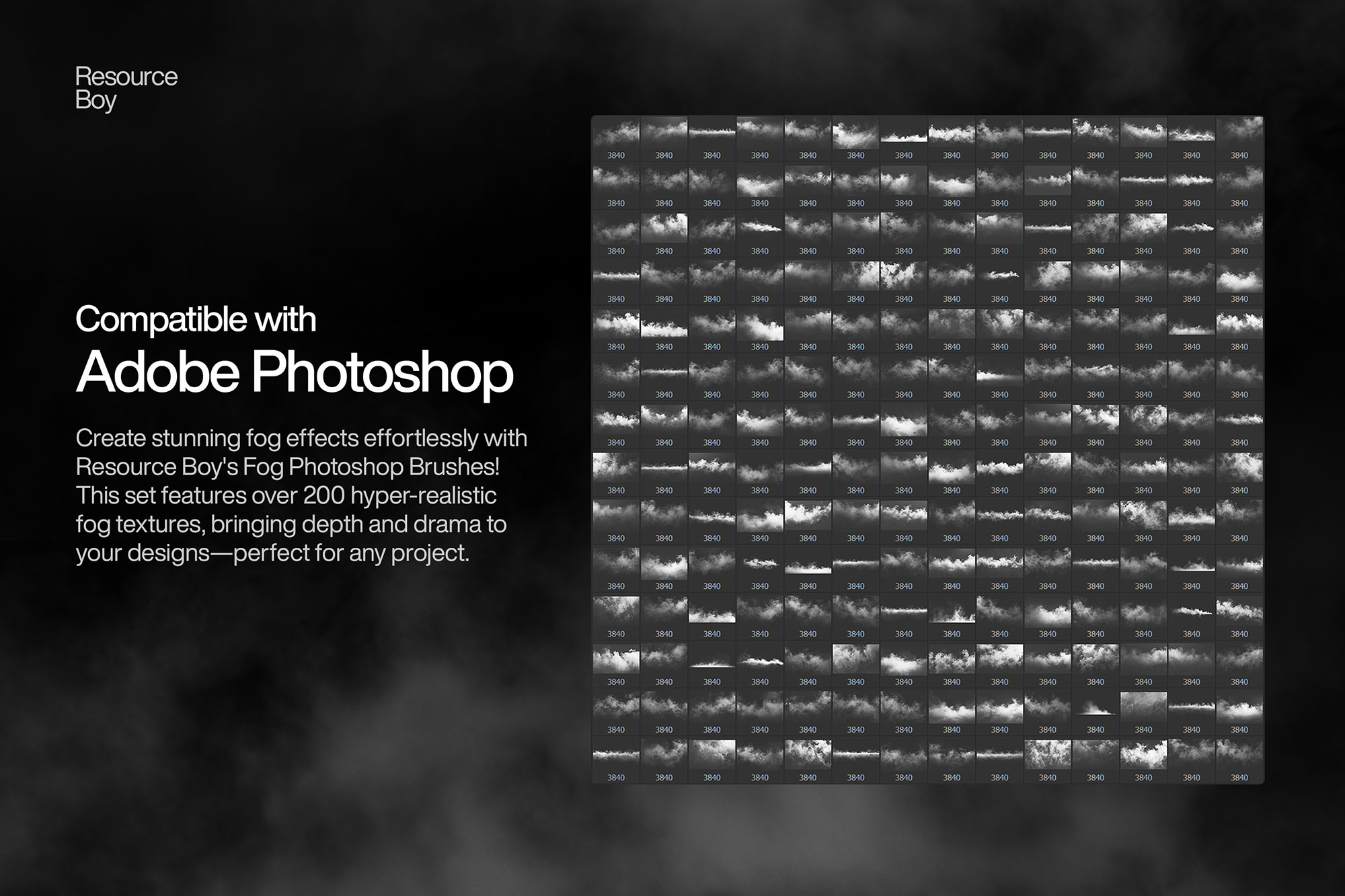
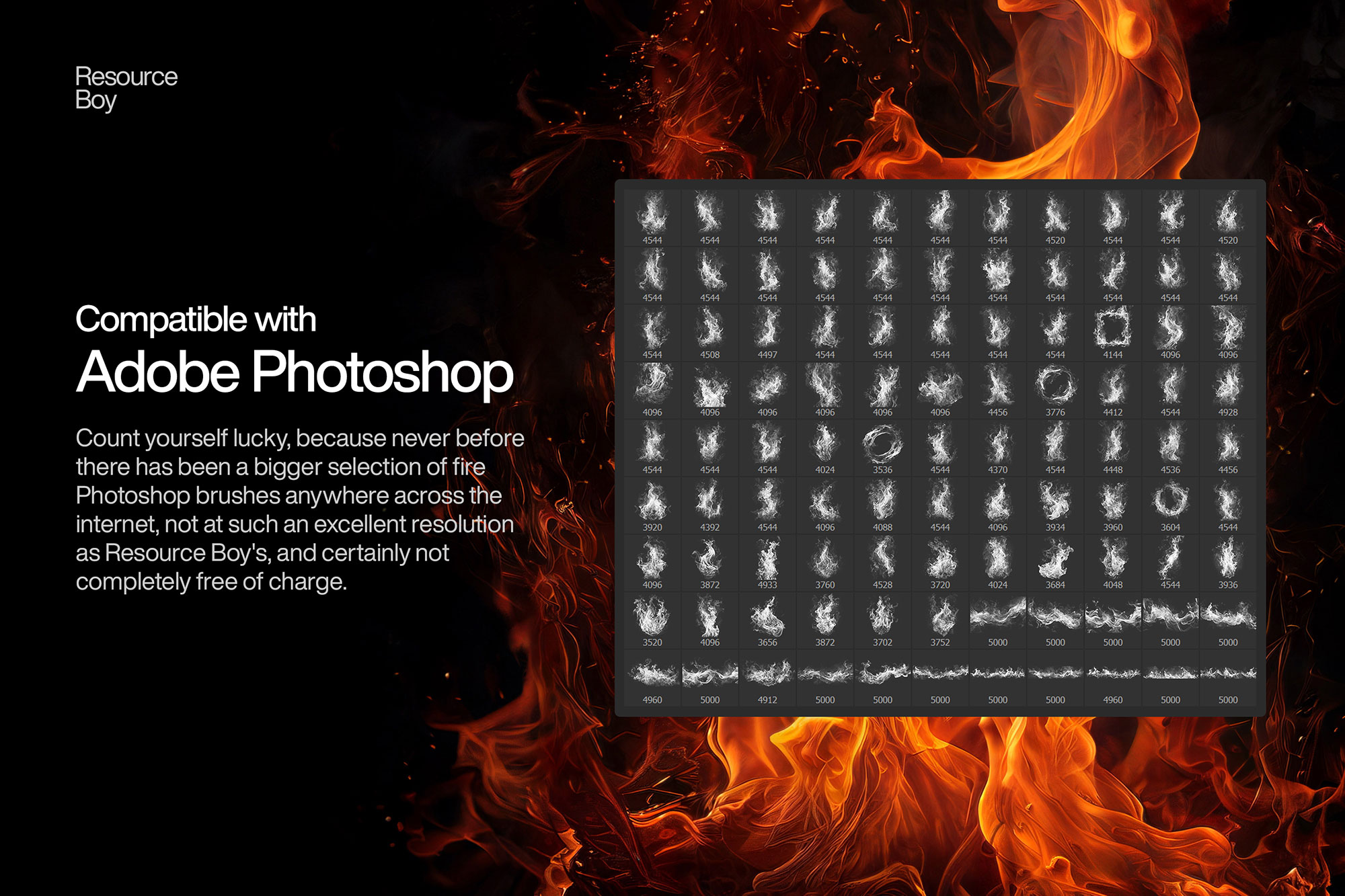
Smoke and fog brushes create dramatic atmospheric effects that instantly elevate photo compositing and digital art. These brushes simulate the wispy, unpredictable movement of smoke, steam, mist, and fog — adding mystery, depth, and cinematic mood to any composition. They are widely used in fantasy and dark art, moody portrait photography, product shot backgrounds, concert and event graphics, and motion picture poster design. The key to believable smoke effects lies in layering multiple brush strokes at low opacity, rotating freely between strokes, and using the right blend mode to let the smoke integrate naturally with whatever is behind it.
About Smoke Photoshop Brushes
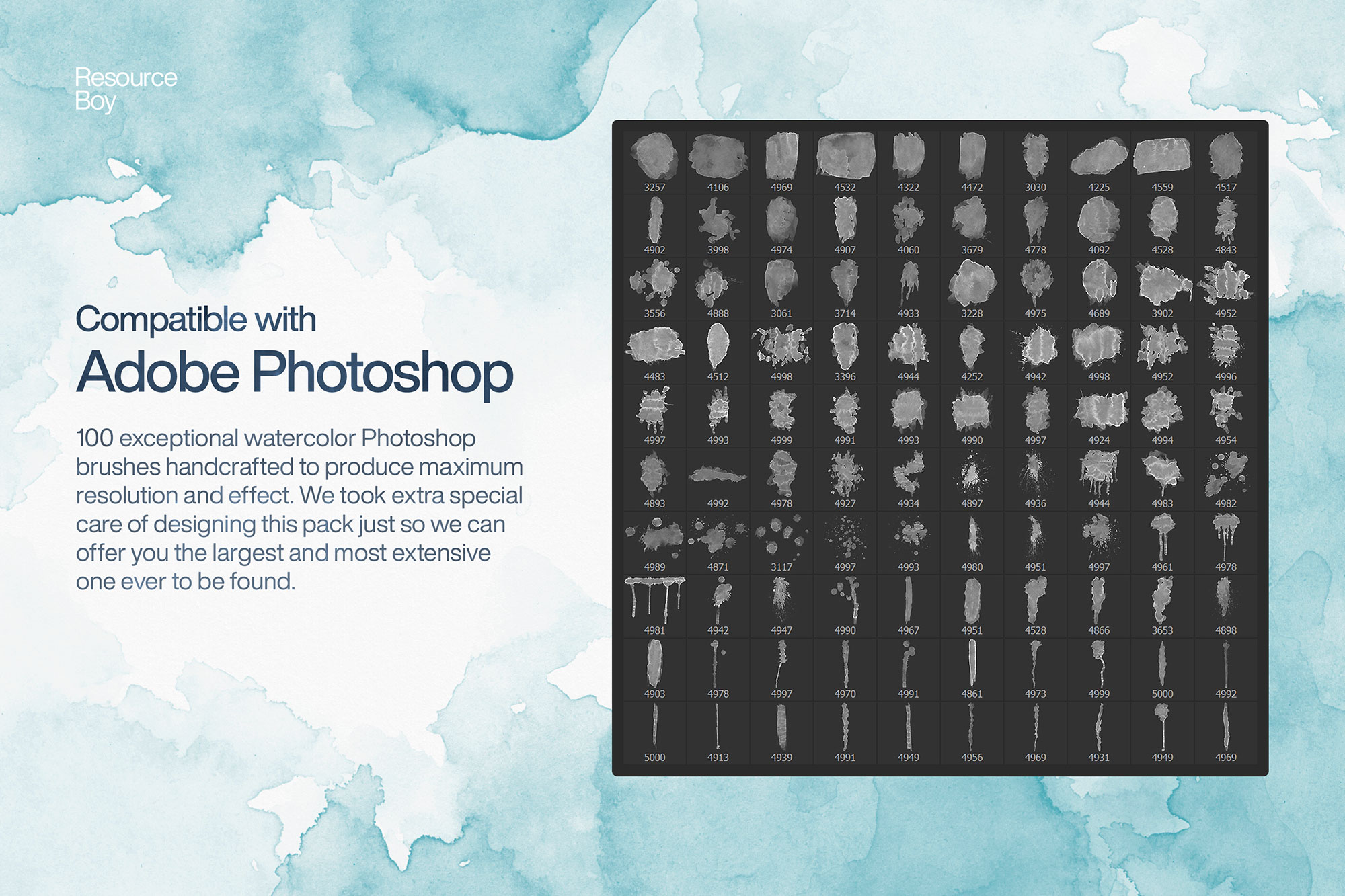
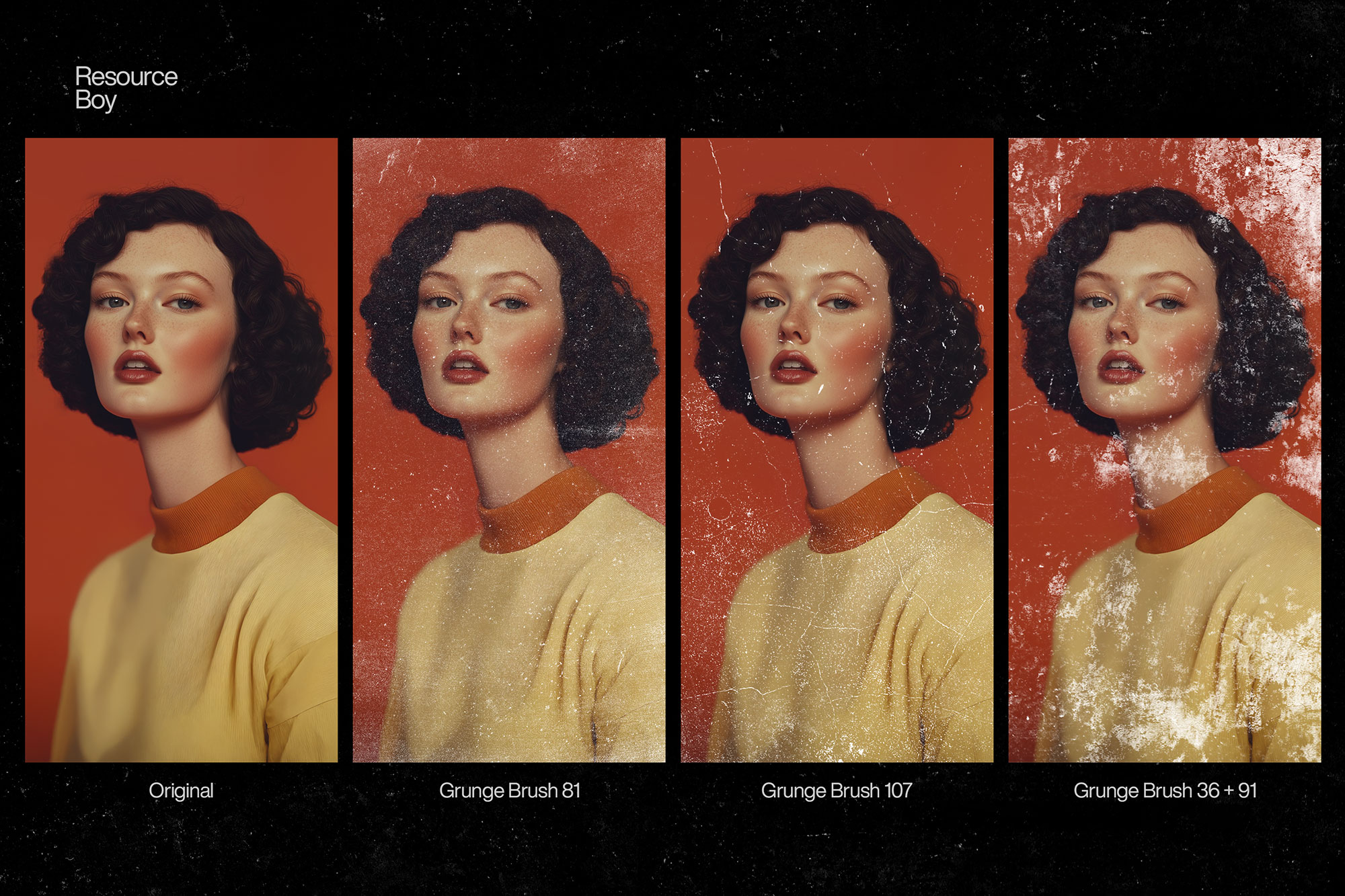
Smoke and fog brushes create dramatic atmospheric effects that instantly elevate photo compositing and digital art. These brushes simulate the wispy, unpredictable movement of smoke, steam, mist, and fog — adding mystery, depth, and cinematic mood to any composition. They are widely used in fantasy and dark art, moody portrait photography, product shot backgrounds, concert and event graphics, and motion picture poster design. The key to believable smoke effects lies in layering multiple brush strokes at low opacity, rotating freely between strokes, and using the right blend mode to let the smoke integrate naturally with whatever is behind it.
Tips for Using Smoke Photoshop Brushes
- Work on a dark or black background — smoke and fog brushes are most visible against dark values
- Use Screen or Add (Linear Dodge) blend mode so smoke naturally brightens and integrates with the image below
- Paint smoke in pure white or light grey, then colorize with Color Balance or Hue/Saturation for dramatic tones
- Make multiple passes at 15–30% opacity, rotating the brush between each stroke for organic, non-repetitive smoke
- Blur individual smoke layers slightly (Gaussian Blur 2–5px) to blend them together and create atmospheric depth
Frequently Asked Questions
What blend mode should I use for smoke brushes in Photoshop?
Screen or Linear Dodge (Add) are the standard blend modes for smoke and fog brushes. These modes make the smoke additive, so it brightens the image below and looks naturally transparent — just like real smoke.
How do I add realistic fog to a photo using Photoshop brushes?
Create a new layer above your photo. Paint fog or mist brushes in white or very light grey using Screen blend mode at 20–40% opacity. Use multiple strokes at different opacities to build up depth, and apply a slight Gaussian Blur (2–4px) to soften the edges.
Can I use smoke brushes to create a moody background?
Yes — smoke brushes are ideal for atmospheric backgrounds. Paint on a black canvas using Screen mode in multiple colors (deep blue, purple, teal) to create cinematic, moody background textures for posters, album art, and social media graphics.
Are these smoke Photoshop brushes high resolution?
Most smoke and fog brush sets linked from this page are high resolution (2500px+), suitable for large format print and detailed digital art. Check the source page for specific resolution details.